In this video tutorial we will show you how to password protect a PDF.
This tutorial will show you how to create password for PDF using Acrobat XI. This can be a good way to protect any data you may have stored as a PDF document.
Step # 1 -- Choosing to Encrypt with a Password
Open the PDF that you want to protect in Acrobat XI. In the top right of the window click on the Tools option and in the menu that appears click on the Protection tab. Click the Encrypt option that has appeared and in the menu that appears click Encrypt with Password.
Step # 2 -- Creating the Password
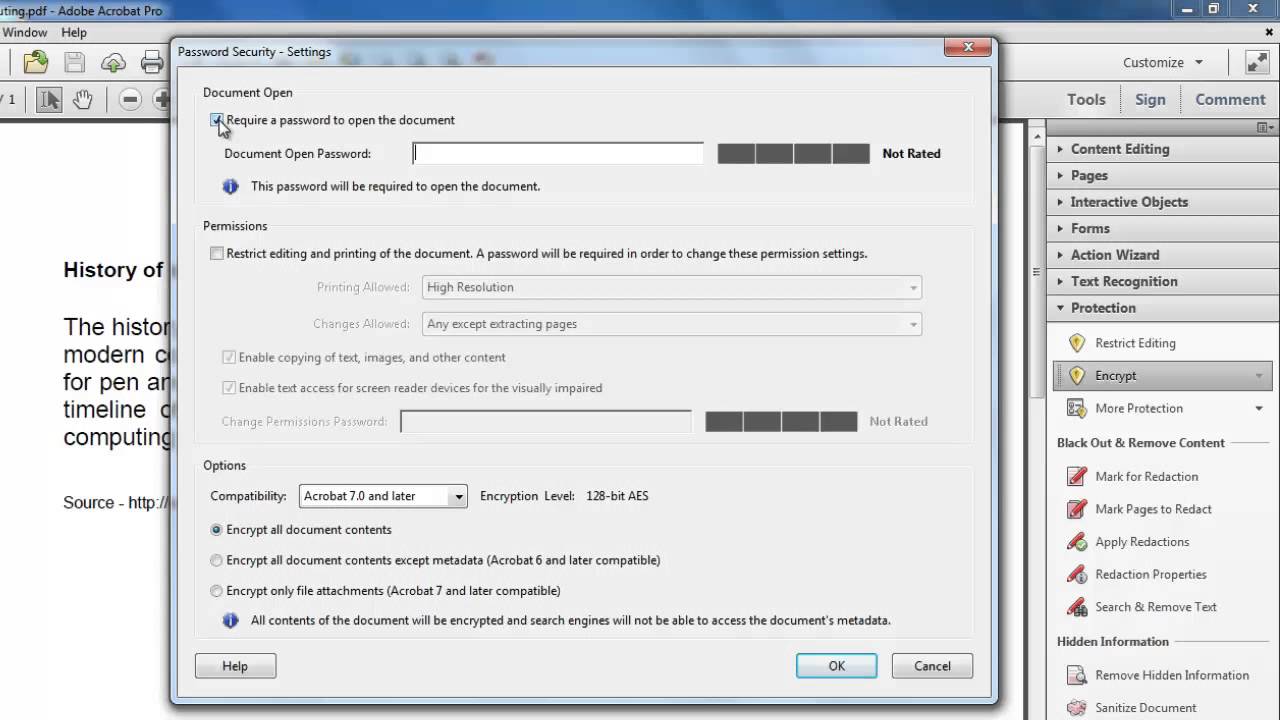
Click Yes in the dialog box that appears. Check the box at the top that reads Require a password to open the document and enter a password in the field below. There are some further password protections options on this page, but here we are just sticking to the simple password to open option. Click OK. Reenter the password when promoted and click OK, click OK in the dialog box that appears. Close Acrobat and opt to save the PDF.
Step # 3 -- Testing the Password
Now, to check the password has been applied to the document locate the file on your computer open it. A window will appear asking you to enter a password, do this and click OK. Assuming you got the password right the document will open and that is how to create password for pdf Date: 2023-07-08