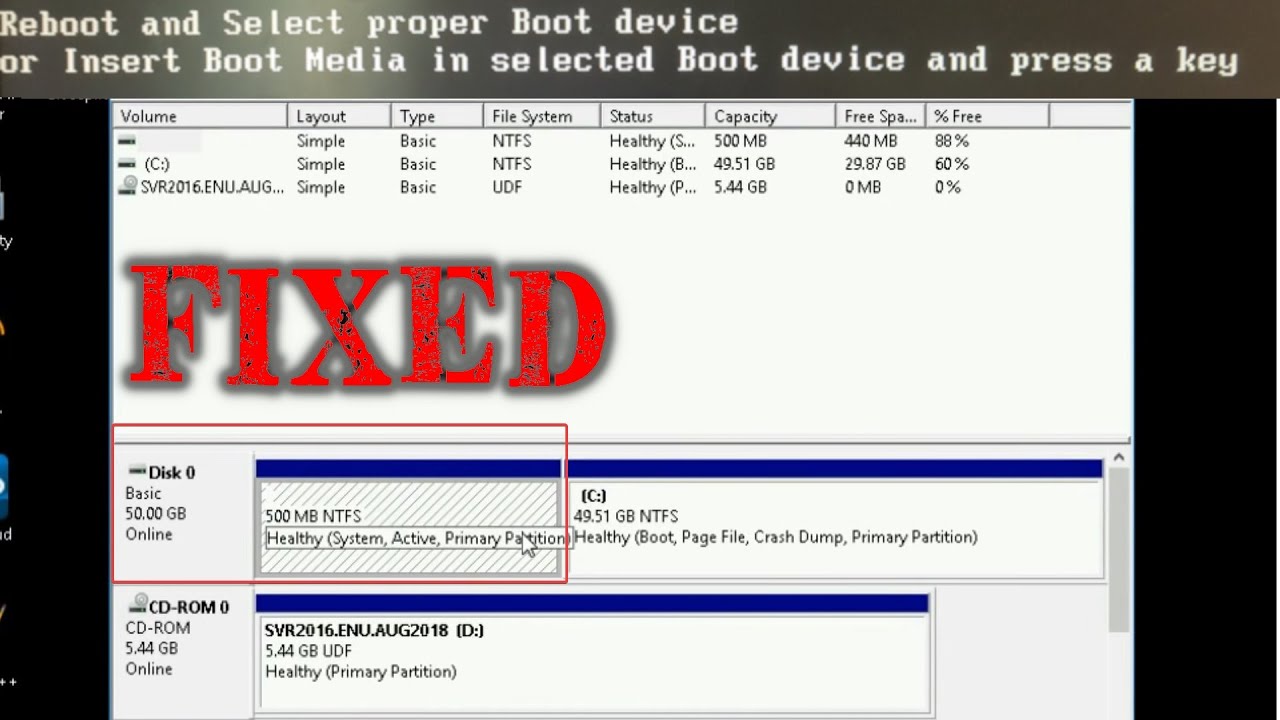
Repair Windows Boot Partition - Includes files and partitioning - Chris Titus Tech
video description
Date: 2022-03-20
Related videos




Comments and reviews: 10
Korasi
Thank you! It didn't work exactly as it should for me as I will explain, but I managed to boot back into Windows with your help.
Now I'll explain a few things that might help others.
Firstly, my drive is GPT not MBR which gave me doubts about following this guide as I researched and found that bootrec /fixmbr does not work on GPT as the name might indicate. I ran it anyway expecting an error but it did actually run, whether it did anything or not, I don't know. But you -may still be able to use this guide to fix your problem even if you have a GPT drive.-
Ok so here's my problem: I installed Pop_OS and this broke my Windows 11 boot loader. I inspected further and found that my issue was different to most as when I checked in diskpart I found that my EFI partition was simply and completely missing, so I ended up shrinking my windows partition and creating a new system partition altogether (easy to find guides for this part). I actually followed a guide for this that sent me down a weird path, which I didn't realise at the time. I was instructed to shrink my C drive by 500mb and then create a 200mb partition for EFI, and a 128mb partition for something else which ended up not being necessary. All I would recommend is to 1) shrink C partition by 500mb, and create your EFI from that, from this point on you can run all the commands from this video. The only difference is my EFI partition is now 200mb, but this doesn't seem to be an issue.
Next it's worth noting that cmd kept reporting that it was finding 0 Windows installations on any of my drives/partitions, as is the case in the video, only I'm not running a VM. Despite this, I continued to run the various commands, and eventually when I rebooted and hit F12, the Windows Boot Manager had reappeared in my boot list!
To be honest I'm not 100% sure what part of the process fixed my Windows EFI, as I took elements from various tutorials and partly just used common sense and troubleshooting to figure out what I should do next based on what I had already done, but the upshot is I managed to recover from simply not having an EFI partition despite not finding the exact guide for my exact issue. My best piece of advice would be this: -periodically reboot your machine between steps!-. If you get into cmd through your Windows installer USB and you start running commands, don't be afraid to exit out and see if anything has changed in between time. You may not realise that your issue isn't exactly the same as the one in the guide your following, and you may not need to follow each and every step. I rebooted especially after running some bootrec/fix/rebuild commands, if you run a command and it looks like it has successfully completed, just check if that has resolved the issue prior to running more scary commands.
Oh, also I nearly forgot, but the bootrec /fixboot command didn't actually work for me, I was greeted with an -Access Denied- error when trying to run it, but, clearly that didn't matter as I fixed the issue without that command. (I read that different Windows build installers may deny this command where other builds may authorise it).
The main upshot of this comment is that if you are struggling, you may be better off saving time, and instead of trying to find a tutorial for your exact issue, maybe corroborate elements from different tutorials, and apply some logic to your troubleshooting. What helped most for me was learning a) how to create a new system partition through diskpart, and b) learning all the commands in this video/other guides. The rest was just proceeding with caution, periodically rebooting, and being able to adapt when I couldn't follow a step exactly in a tutorial.
Hope some of this helps others as it was pretty frustrating for me reading so many comments saying -Thank you so much this saved my life!- when this absolutely wasn't the case for me.. Just persevere and you'll get there!
Thanks for the guide, it did help me out a lot even if my issue was a bit more complicated... xD
reply
Thank you! It didn't work exactly as it should for me as I will explain, but I managed to boot back into Windows with your help.
Now I'll explain a few things that might help others.
Firstly, my drive is GPT not MBR which gave me doubts about following this guide as I researched and found that bootrec /fixmbr does not work on GPT as the name might indicate. I ran it anyway expecting an error but it did actually run, whether it did anything or not, I don't know. But you -may still be able to use this guide to fix your problem even if you have a GPT drive.-
Ok so here's my problem: I installed Pop_OS and this broke my Windows 11 boot loader. I inspected further and found that my issue was different to most as when I checked in diskpart I found that my EFI partition was simply and completely missing, so I ended up shrinking my windows partition and creating a new system partition altogether (easy to find guides for this part). I actually followed a guide for this that sent me down a weird path, which I didn't realise at the time. I was instructed to shrink my C drive by 500mb and then create a 200mb partition for EFI, and a 128mb partition for something else which ended up not being necessary. All I would recommend is to 1) shrink C partition by 500mb, and create your EFI from that, from this point on you can run all the commands from this video. The only difference is my EFI partition is now 200mb, but this doesn't seem to be an issue.
Next it's worth noting that cmd kept reporting that it was finding 0 Windows installations on any of my drives/partitions, as is the case in the video, only I'm not running a VM. Despite this, I continued to run the various commands, and eventually when I rebooted and hit F12, the Windows Boot Manager had reappeared in my boot list!
To be honest I'm not 100% sure what part of the process fixed my Windows EFI, as I took elements from various tutorials and partly just used common sense and troubleshooting to figure out what I should do next based on what I had already done, but the upshot is I managed to recover from simply not having an EFI partition despite not finding the exact guide for my exact issue. My best piece of advice would be this: -periodically reboot your machine between steps!-. If you get into cmd through your Windows installer USB and you start running commands, don't be afraid to exit out and see if anything has changed in between time. You may not realise that your issue isn't exactly the same as the one in the guide your following, and you may not need to follow each and every step. I rebooted especially after running some bootrec/fix/rebuild commands, if you run a command and it looks like it has successfully completed, just check if that has resolved the issue prior to running more scary commands.
Oh, also I nearly forgot, but the bootrec /fixboot command didn't actually work for me, I was greeted with an -Access Denied- error when trying to run it, but, clearly that didn't matter as I fixed the issue without that command. (I read that different Windows build installers may deny this command where other builds may authorise it).
The main upshot of this comment is that if you are struggling, you may be better off saving time, and instead of trying to find a tutorial for your exact issue, maybe corroborate elements from different tutorials, and apply some logic to your troubleshooting. What helped most for me was learning a) how to create a new system partition through diskpart, and b) learning all the commands in this video/other guides. The rest was just proceeding with caution, periodically rebooting, and being able to adapt when I couldn't follow a step exactly in a tutorial.
Hope some of this helps others as it was pretty frustrating for me reading so many comments saying -Thank you so much this saved my life!- when this absolutely wasn't the case for me.. Just persevere and you'll get there!
Thanks for the guide, it did help me out a lot even if my issue was a bit more complicated... xD
reply
Thiago
Dude thanks a lot!! I excluded accidentally my EFI partition while I was doing a dual boot with ubuntu hahahah. Had to create a new one and then follow your steps. I'll be left my steps to create a new EFI partition, maybe can help someone too:
Run the commands below to shrink a partition for unallocated space:-
1.diskpart-
list disk-
select disk # ( Select the disk where you want to add the EFI system partition.)-
list partition-
select partition # (Select the partition which you plan to shrink.)-
shrink desired=100 (Shrink the selected partition by 100MB.)-
2. Run the following commands to create the EFI system partition with the unallocated space:-
create partition efi size=100-
format quick fs=fat32-
assign letter=S (You may replace -S- with other letters which are not already used.)
reply
Dude thanks a lot!! I excluded accidentally my EFI partition while I was doing a dual boot with ubuntu hahahah. Had to create a new one and then follow your steps. I'll be left my steps to create a new EFI partition, maybe can help someone too:
Run the commands below to shrink a partition for unallocated space:-
1.diskpart-
list disk-
select disk # ( Select the disk where you want to add the EFI system partition.)-
list partition-
select partition # (Select the partition which you plan to shrink.)-
shrink desired=100 (Shrink the selected partition by 100MB.)-
2. Run the following commands to create the EFI system partition with the unallocated space:-
create partition efi size=100-
format quick fs=fat32-
assign letter=S (You may replace -S- with other letters which are not already used.)
reply
Paul
Here's the dilemma i'm faced with Upon boot up, the screen reads EFI SHELL 2.40 (5.11)
MAP: cannot find the required map name
along with the usual press esc in 1sec.
when i go into bios boot option priorities all it presents me with is UEFI BUILT IN EFI boot and what ever bootable drive i have in at the time every time i try the official recovery flash drive it fails and can't find a partition to load it on to. seems it's been totally wiped
Went into CMD and pulled up disk 0 checked partitions within and only come up with 1 partition type primary. Any advice as to how to rebuild partitions to be able to run the factory image would be of tremendous help because as of now I've drawn a blank on how to get past this.
Cheers
reply
Here's the dilemma i'm faced with Upon boot up, the screen reads EFI SHELL 2.40 (5.11)
MAP: cannot find the required map name
along with the usual press esc in 1sec.
when i go into bios boot option priorities all it presents me with is UEFI BUILT IN EFI boot and what ever bootable drive i have in at the time every time i try the official recovery flash drive it fails and can't find a partition to load it on to. seems it's been totally wiped
Went into CMD and pulled up disk 0 checked partitions within and only come up with 1 partition type primary. Any advice as to how to rebuild partitions to be able to run the factory image would be of tremendous help because as of now I've drawn a blank on how to get past this.
Cheers
reply
TNTpig
my computer says that bootrec is not recognized as an internal or external command, operable program or batch file. how do i fix this because ive been trying to get my m.2 that i cloned my hdd's boot to and nothing has been working i made sure the m.2 could run windows by installing it on the drive and it launched but i could not use my files so i tryed coppying them over including the user data nothing worked and now im back to browsing youtube for help
reply
my computer says that bootrec is not recognized as an internal or external command, operable program or batch file. how do i fix this because ive been trying to get my m.2 that i cloned my hdd's boot to and nothing has been working i made sure the m.2 could run windows by installing it on the drive and it launched but i could not use my files so i tryed coppying them over including the user data nothing worked and now im back to browsing youtube for help
reply
Gerardo
Worked great! had some issues the first time I tried it on WIndows 11 showing -C:- was not available so cleaned up partitions with windows disk manager in another computer to leave less partitions, I also updated to the latest BIOS for my motherboard and finally I was able to assign letter C: in another drive, followed all the instructions to the -T- and saved my new computer can't thank Chris enough.
reply
Worked great! had some issues the first time I tried it on WIndows 11 showing -C:- was not available so cleaned up partitions with windows disk manager in another computer to leave less partitions, I also updated to the latest BIOS for my motherboard and finally I was able to assign letter C: in another drive, followed all the instructions to the -T- and saved my new computer can't thank Chris enough.
reply
Andreas
Thank you first of all for tha good information you give everytime .
But i have an problem when i insert the following command
bootrec /fixboot
I got the following message
Access is denied.
And when i use the command
/rebuildbcd
Ask me if i want to add installation to boot list
I write ALL
And give me a message
The requested system device cannot be found
reply
Thank you first of all for tha good information you give everytime .
But i have an problem when i insert the following command
bootrec /fixboot
I got the following message
Access is denied.
And when i use the command
/rebuildbcd
Ask me if i want to add installation to boot list
I write ALL
And give me a message
The requested system device cannot be found
reply
Bilal
I just used your directions to fix a Windows 10 system that I cloned. Windows will recognize two disks with the same signature. Using the 'uniqueid' in partdisk can be used to change the signature, but it can also make the drive not bootable. Using your turorial, I was able to get Windows to boot properly again. Thanks for the directions!
reply
I just used your directions to fix a Windows 10 system that I cloned. Windows will recognize two disks with the same signature. Using the 'uniqueid' in partdisk can be used to change the signature, but it can also make the drive not bootable. Using your turorial, I was able to get Windows to boot properly again. Thanks for the directions!
reply
Jordan
Hey thanks for this tutorial! Works for windows 11.
For some reason when I reformatted my second drive it had the boot files on it, so this video was a massive help. I had to do a couple extra steps (creating new system partition), but couldn-t have done it without the video. Thanks!
reply
Hey thanks for this tutorial! Works for windows 11.
For some reason when I reformatted my second drive it had the boot files on it, so this video was a massive help. I had to do a couple extra steps (creating new system partition), but couldn-t have done it without the video. Thanks!
reply
Robert
The repair guy booted Windows 8 boot files in my Windows 10 hard drive. :-) How clever :-). Let's see if your system works. I watched your video and your system seems to be A1 for it makes a lot of sense!- So let me try and I'll come back to give you the results. Thanks Chris!
reply
The repair guy booted Windows 8 boot files in my Windows 10 hard drive. :-) How clever :-). Let's see if your system works. I watched your video and your system seems to be A1 for it makes a lot of sense!- So let me try and I'll come back to give you the results. Thanks Chris!
reply
casual
Almost 3 years later and this video is the gift that keeps on giving! Just managed to save a windows installation from a failing drive by shrinking its partition, clonezilla-ing it onto a vm and repairing the boot sector. Thanks for yet another super helpful video, Chris (:
reply
Almost 3 years later and this video is the gift that keeps on giving! Just managed to save a windows installation from a failing drive by shrinking its partition, clonezilla-ing it onto a vm and repairing the boot sector. Thanks for yet another super helpful video, Chris (:
reply
Add a review, comment
Other channel videos