How to Create Windows Bootable USB Flash Drive - Windows 7 / 8.1 / 10 The Teacher
FBTwitterReddit
video description
Rating: 4.0; Vote: 1
How to Create Windows Bootable USB Flash Drive - Windows 7 / 8.1 / 10 The Teacher
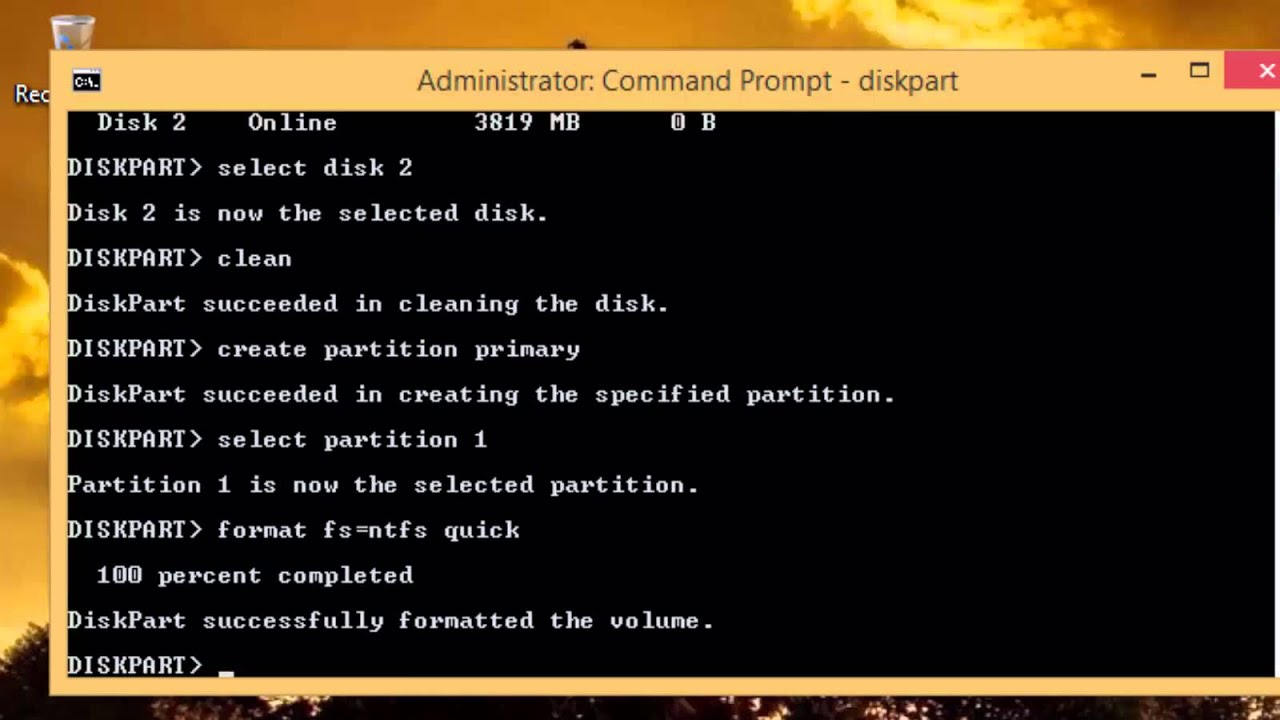
In this Windows 8.1 tutorial, you will learn to create Windows 8.1 Bootable USB Flash Drive using the DISKPART utility. You can easily create a Bootable USB Flash Drive for Windows 8.1 using DISKPART command and you don't need to install any third party applications.
DISKPART utility is widely used to manage your disk drives from command prompt. You can clean a disk, create new partitions, assign drive letters and can make a partition active. You can even convert disk from Basic to Dynamic or GPT style.
Most Important
=============
Please always keep in mind that while using BOOTSECT /NT 60 command from the Boot directory of your DVD Drive or from an ISO image - it will totally depend on that which operating system files are available in the DVD or Mounted ISO Image. If it is a Windows 7 DVD then your USB will automatically become a Windows 7 Bootable USB Drive and if the Mounted Image or DVD is of Windows 8.1 or Windows 10 then it will become the same respectively.
So DISKPART not only helps you to create Bootable USB Media but you can use this single utility to create any of the following bootable pendrive depending on the DVD / Image that you will use.
Windows 7 Bootable Pendrive
Windows 8 or 8.1 Bootable Pendrive
Windows 10 Bootable Pendrive Date: 2022-03-31