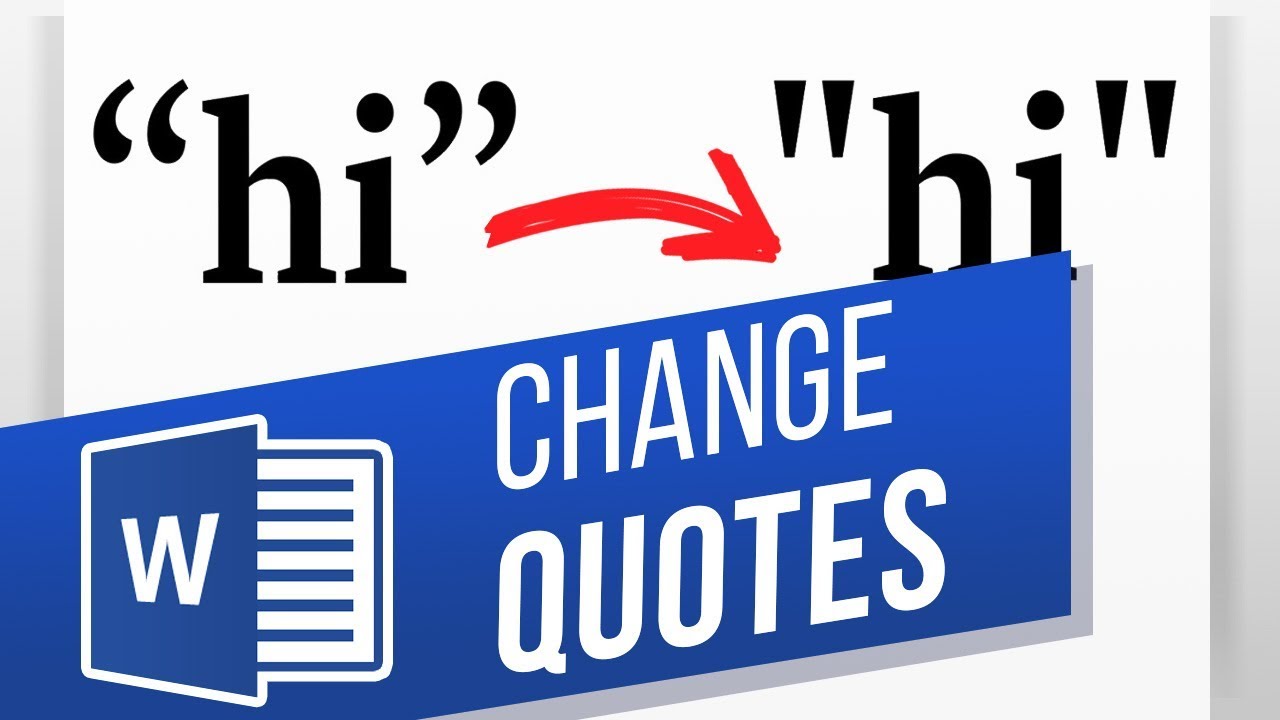
Replace Smart Curly Quotes to Straight Quotes in Word
video description
Date: 2023-07-08
Related videos


Comments and reviews: 5
Batdriven
I'm using Office XP with a word 2000 version (since I prefer the much more simple layout of word to the new stuff) but when I went into autoformat and unchecked the box to replace straight quotes with curly ones, it doesn't work. No matter how many times I tried, opening new documents etc, my word always insists on using these uglyass curly quotes and it's giving me headaches. I only have this problem since using win10 pro on my machine, before I had win7 and never had any problems with the quotes in word: (
reply
I'm using Office XP with a word 2000 version (since I prefer the much more simple layout of word to the new stuff) but when I went into autoformat and unchecked the box to replace straight quotes with curly ones, it doesn't work. No matter how many times I tried, opening new documents etc, my word always insists on using these uglyass curly quotes and it's giving me headaches. I only have this problem since using win10 pro on my machine, before I had win7 and never had any problems with the quotes in word: (
reply
Bent
Nope. Microsoft is fighting back. It won't let me do this.
It's saying it's doing it, but it's not doing it.
Yay. I get to waste my life manually replacing each quote in a dialogue heavy piece.
And for some reason when I paste a normal one in at the end of a quote it adds a space.
reply
Nope. Microsoft is fighting back. It won't let me do this.
It's saying it's doing it, but it's not doing it.
Yay. I get to waste my life manually replacing each quote in a dialogue heavy piece.
And for some reason when I paste a normal one in at the end of a quote it adds a space.
reply
itech
My challenge is wanting straight quotes to take for Word in general vs. having to do this with every document. I'm wondering if creating a style might do the trick.
reply
My challenge is wanting straight quotes to take for Word in general vs. having to do this with every document. I'm wondering if creating a style might do the trick.
reply
Dniel
File->Options->Proofing->AutoCorrect Options->AutoFormat As You Type Tab-> uncheck the Straight quotes with smart quotes checkbox
reply
File->Options->Proofing->AutoCorrect Options->AutoFormat As You Type Tab-> uncheck the Straight quotes with smart quotes checkbox
reply
Jessica
Thank you! It worked perfectly for curly apostrophes (Alt+0416) that I wanted them to get replaced by straight ones
reply
Thank you! It worked perfectly for curly apostrophes (Alt+0416) that I wanted them to get replaced by straight ones
reply
Add a review, comment
Other channel videos