In this video tutorial you are going to learn how to adjust paragraph spacing Word.
This tutorial will provide a guide to changing paragraph spacing in Word.
Step # 1 -- Changing the Spacing Between Lines
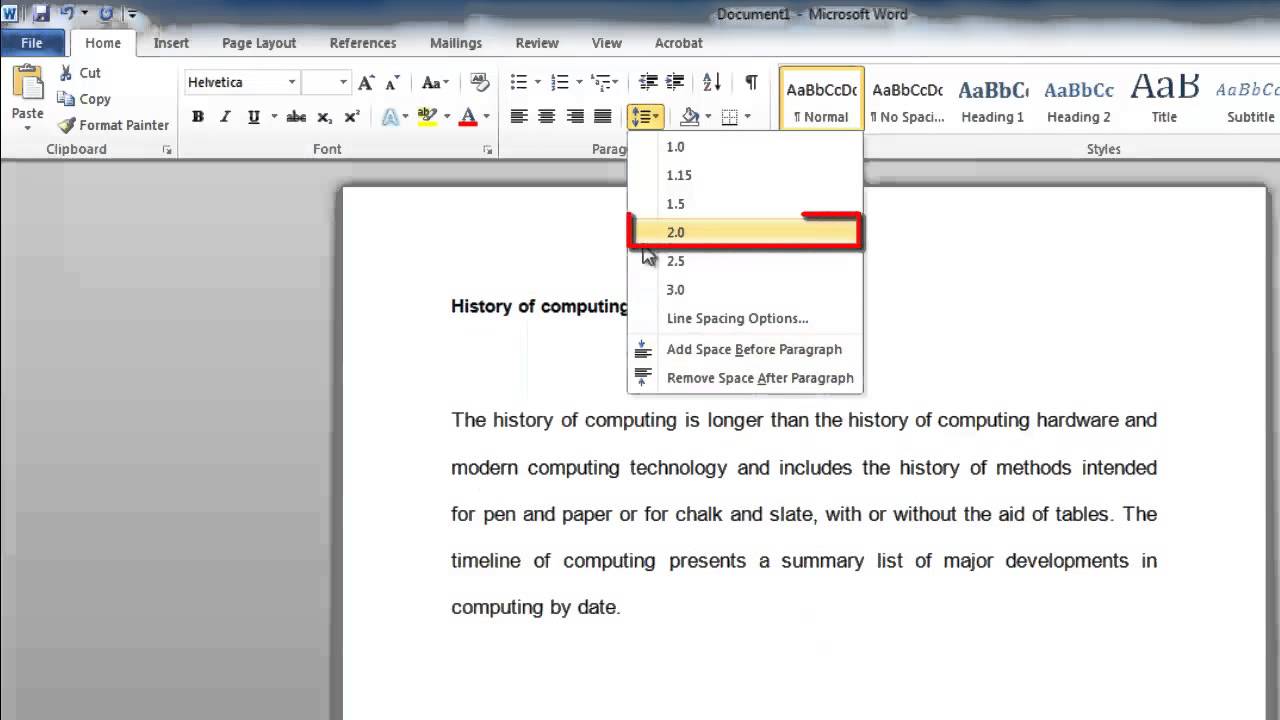
Make sure that the cursor is placed within the paragraph that you want to adjust the formatting on. If you want to adjust spacing of the whole document, press Control and A on the keyboard to select the whole document. Make sure that you are in the Home tab, find the Paragraph area and click on the Line and Paragraph Spacing icon. In the menu that appears you will see several spacing options, mouse over each one to see what effect it would have on your text. Here we will set it to double line spacing by clicking 2. 0.
Step # 2 -- Changing Spacing Before and After a Paragraph
If you want to change the space that appears before or after a paragraph click on the icon once again and mouse over the bottom two options to see their effect. Here we will remove a space after the paragraph by clicking on that option.
Step # 3 -- Some More Advanced Spacing Options
To access more advanced options relating to paragraph settings, right click within the paragraph that you want to edit and click Paragraph in the menu that appears. In the Spacing section of the window that appears you can see several options, when you change these you will see a preview below and simply click OK to apply these changes to your document and that is how to change paragraph spacing Word
alelooooooya: This is a refreshing voice compared to the incomprehensible Indian accents that one can find all over the web. Date: 2023-07-08